
This step by step guide to fix crawl errors for a small WordPress website shows you where to find the errors, which ones to fix first, and how to check that each fix worked. A crawl error means Google tried to visit one of your pages and could not use it properly. The page may be missing, blocked, redirecting in a loop, or failing on the server. On a small site you can work through the whole list in one sitting with two free tools: Google Search Console, which shows what Google found, and Screaming Frog SEO Spider, whose free version crawls up to 500 URLs.
What a crawl error actually is
When Google crawls your site, it asks your server for each page it knows about. If the answer is not a clean, working page, Search Console records a reason. Some reasons are harmless: a 404 for a page you deleted on purpose is normal, and a redirect for a URL you moved on purpose is normal too. The problems worth fixing are errors on pages you want people to find, and errors that appear in large numbers. The six reasons you will meet most often are: Not found (404), soft 404, server error (5xx), page with redirect, blocked by robots.txt, and blocked by a noindex tag.
Why crawl errors are worth fixing
Broken links are far more common than most site owners expect. A Pew Research Center analysis found that 38% of web pages that existed in 2013 had disappeared by 2023, and 23% of news pages contained at least one broken link. Ahrefs found that 66.5% of links pointing to a sample of over 2 million websites had rotted since January 2013. For a small site the risk is practical: a visitor who clicks a menu link and lands on a missing page leaves, and a search engine that keeps hitting dead ends wastes its visits on pages that cannot rank.
Step 1: Find your crawl errors in Google Search Console
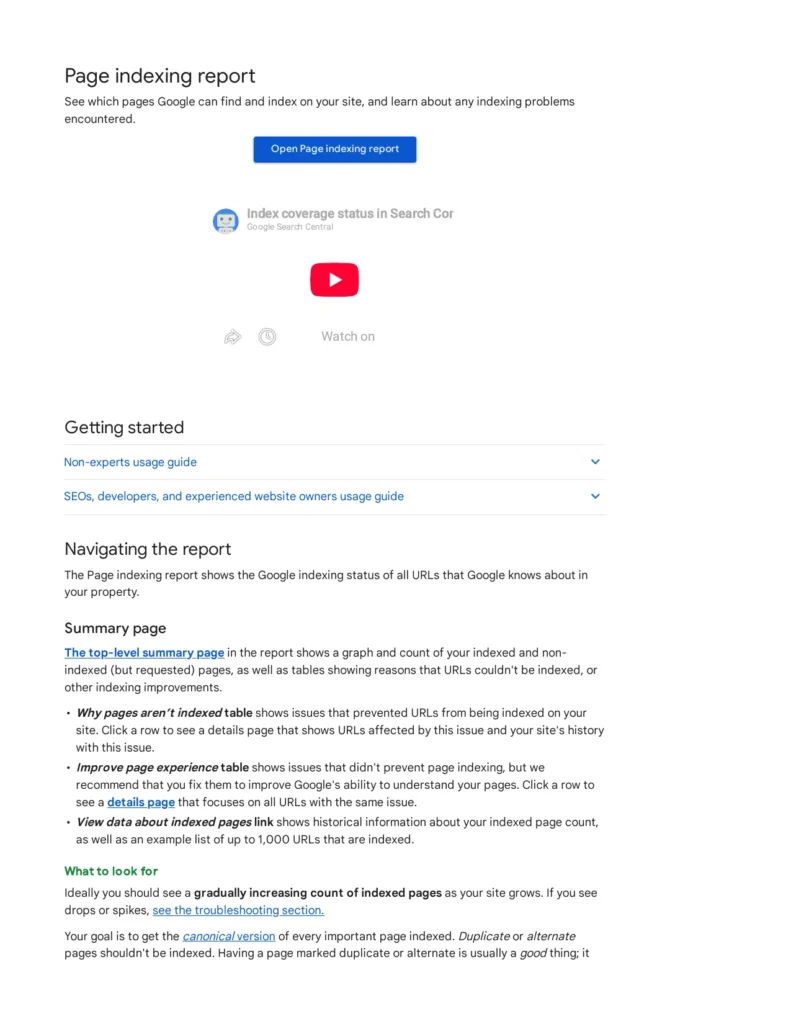
- Open Google Search Console and choose your property. 2. In the left menu, go to Indexing, then Pages. This is the Page indexing report. 3. Look at the “Why pages aren’t indexed” table. Click one reason at a time to see example URLs. Search Console shows up to 1,000 example URLs per reason, which is plenty for a small site. 4. Note the URLs for each reason, and mark which ones are pages you care about. Ignore errors for URLs you deleted on purpose and never want back.
Work by reason, not URL by URL. Ten 404s caused by one deleted category need one fix at the source, not ten separate edits.
Step 2: Run your own crawl to catch what Google missed
Search Console only shows URLs Google knows about. Your own crawl finds broken internal links Google has not reported yet.
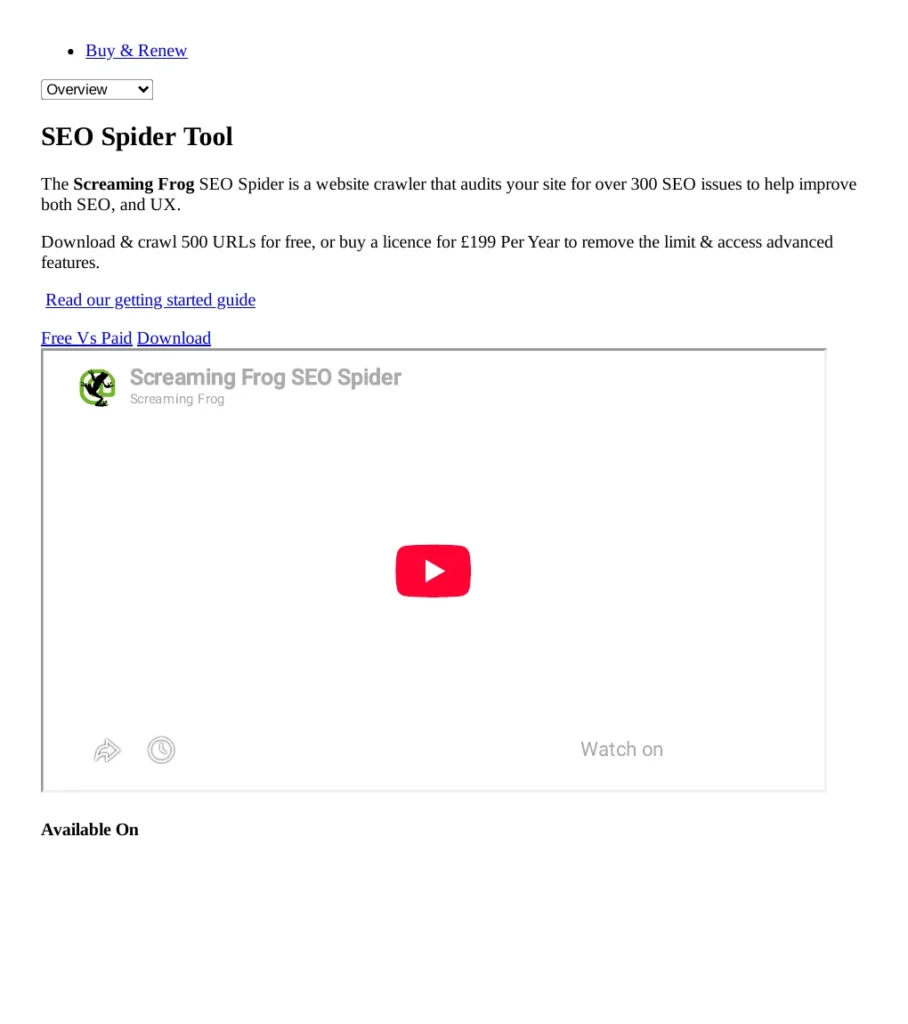
- Download Screaming Frog SEO Spider from the official Screaming Frog site and install it. 2. Enter your homepage URL in the box at the top and click Start. 3. When the crawl finishes, open the Response Codes tab and filter for Client Error (4xx) and Server Error (5xx). 4. Export the list. For each broken link, note both the broken URL and the page that links to it.
Step 3: Fix 404 and soft 404 errors
For each 404, choose one of these actions:
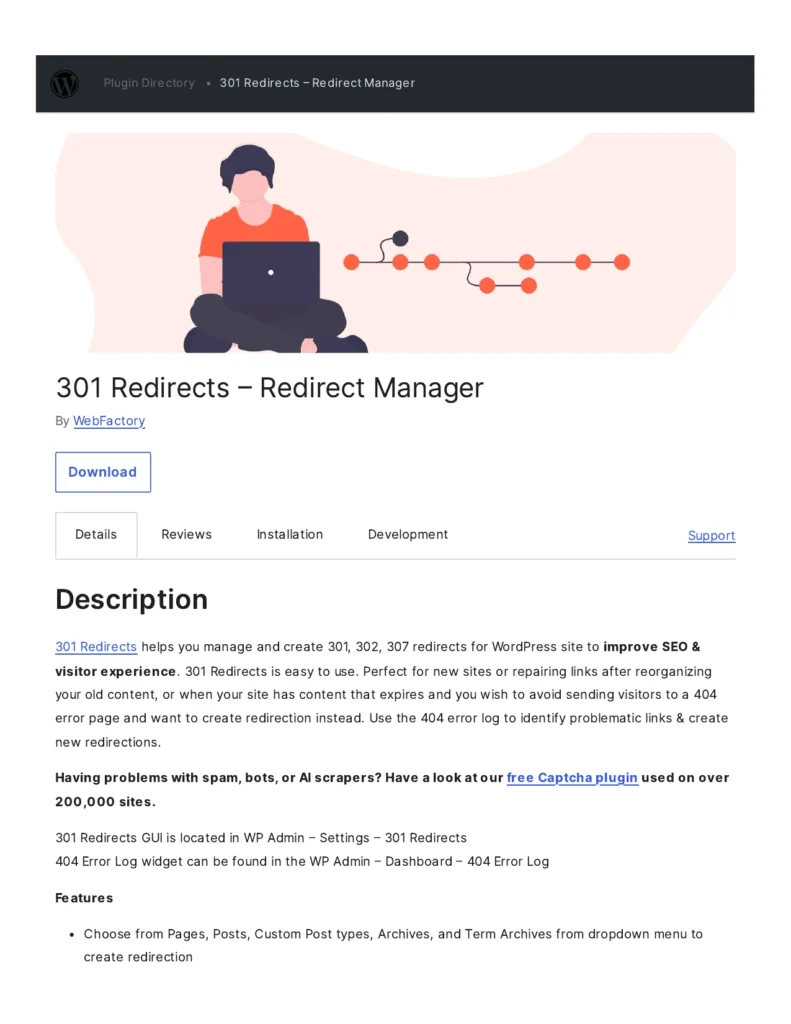
- The page moved. Create a 301 redirect from the old URL to the closest live page. In WordPress, a redirect plugin such as 301 Redirects lets you do this from Settings without editing server files. Never redirect everything to the homepage: Google treats mass homepage redirects as soft 404s.
- The page is gone for good and nothing replaces it. Leave the true 404 in place and remove the URL from your sitemap.
- The page should exist but is thin or empty. This is the usual cause of a soft 404. Add real, useful content, or return a true 404 or 410 Gone if the content is really gone.
After fixing, update every internal link that still points to the old URL.
Step 4: Fix redirect chains and loops
A redirect chain sends visitors from one URL to another, then another. A loop sends them round in circles until the browser gives up. In your crawl export, filter for redirect (3xx) responses and look for chains with more than one hop. Change each chain so every old URL points straight to the final live page in one step. For a loop, one of the two URLs must point to a live page, not back to the other. Test each fixed URL in a browser: it should reach the final page in a single redirect.
Step 5: Fix server errors (5xx) before anything else
A 5xx error means your server failed, not your content. If Google sees repeated 5xx errors it may crawl your site less often, so fix these before the 404s if both appear. Visit the URL yourself first: if it loads fine, the error may have been a one-off overload. If it fails, check your hosting dashboard for resource limits, deactivate recently updated plugins one at a time, and check your host’s error log for PHP errors. Do not hide a server error behind a redirect.
Step 6: Check robots.txt and noindex tags
These two settings cause the most confusing reports, because the page exists and works, yet Google will not use it. Open yoursite.com/robots.txt and look for any Disallow rule that covers a page or folder you want indexed. A single “Disallow: /” blocks the whole site, and it sometimes survives from a staging copy. In WordPress, check Settings, Reading: the “Discourage search engines from indexing this site” box must be unticked on a live site. Note the difference: robots.txt stops crawling, but it does not by itself stop indexing. To keep a page out of search results, use a noindex tag on the page itself.
Step 7: Clean your sitemap, then ask Google to check again
Your sitemap should list only pages you want indexed: live pages that return a 200 code, with their canonical URL. Remove 404s, redirects and noindexed pages from it. In WordPress, open your sitemap (usually sitemap_index.xml with Rank Math) and check that it loads. In Search Console, go to Sitemaps, remove any old sitemap address that returns an error, and submit the correct one. Back in the Page indexing report, open each error reason you fixed and click Validate Fix. For one or two important pages, use URL Inspection: paste the URL, click Test live URL, and request indexing once the live test passes. Give validation time: re-crawling can take days.
A simple monthly routine
Once the backlog is clear, keeping it clear takes little time. Once a month, open the Page indexing report, run a fresh Screaming Frog crawl, and fix new errors in the same order: server errors first, then redirects and loops, then 404s, then robots.txt and noindex checks. If the error list keeps growing faster than you can fix it, that points to a deeper problem, such as a plugin generating bad URLs. In that case a full WordPress SEO audit services review is worth it before you keep patching single URLs.
FAQ
How long does it take Google to clear a fixed crawl error?
Usually days to a few weeks. After you click Validate Fix, Google re-crawls the example URLs over time and updates the report. Small sites may wait longer between visits, so check again after a week rather than every day, and do not assume a fix failed just because the report has not changed yet.
Should I fix every 404 on my WordPress site?
No. Fix 404s on pages that had traffic, backlinks or an obvious replacement, because those are the ones visitors and search engines still try to reach. Leave a clean 404 for pages you deleted on purpose, and remove those URLs from your sitemap so they stop appearing as problems in your reports.
What is the difference between a 404 and a soft 404?
A true 404 means the server says the page does not exist. A soft 404 means the page looks like an error page or has almost no content, but the server still returns a 200 OK code. Google cannot tell what you meant, so it reports the page as a soft 404 until you add real content or return a true 404 instead.
Can crawl errors hurt my rankings?
A few 404s for deleted pages will not hurt you: Google treats them as normal. The harm comes from errors on pages you want to rank, from server errors that stop crawling, and from large numbers of errors that suggest a poorly kept site. Fix the errors that touch important pages first, and the rest can wait.
Do I need a paid tool to fix crawl errors on a small site?
No. Google Search Console is free, and the free version of Screaming Frog SEO Spider crawls up to 500 URLs, which covers most small WordPress sites. Paid tools help on larger sites with thousands of pages, but they are not needed to work through a small site’s error list today.
Sources
- Pew Research Center analysis of disappearing web pages, summarised at https://www.distinguished-mag.com/the-web-is-disappearing-is-it-its-fault/
- Google Search Console Help, Page indexing report: https://support.google.com/webmasters/answer/7440203?hl=en
- Screaming Frog SEO Spider official page: https://www.screamingfrog.co.uk/seo-spider/

Abdullah Zulfiqar is Co-founder and Client Success Manager at RankWithLinks, an SEO agency helping businesses grow online. He specializes in client relations and SEO strategy, driving measurable results and maximizing ROI through effective link-building and digital marketing solutions.