

Introduction
This step by step guide to do a technical SEO audit for a WordPress blog walks you through the checks that matter most: can Google find and index your posts, do your pages load well, and are crawl errors holding back pages that should rank? You do not need expensive tools to start. Google Search Console, PageSpeed Insights and a free crawl tool will cover most of a small blog, and WordPress itself gives you a clean sitemap and simple controls for titles, redirects and indexing.
A technical audit is not a content review. It does not judge whether a post is well written. It checks whether search engines can reach, read and trust the page. If a page is blocked, broken or very slow, good writing alone will not save it. Fix the serious problems first, and note what you changed so you can check the result later.
W3Techs data reported in 2025 put WordPress at about 43.4% of all websites and about 61.1% of sites using a known content management system, so most problems you meet have a known fix.
Step 1: Check indexing in Google Search Console
In Google Search Console, open Indexing, then Pages. Look first at the error rows, not the total count. A few errors on important posts matter more than a long list of excluded tag pages you never wanted indexed.
For each error, click the row, open one example URL, and read what Google reports. Common causes include a 404, a page blocked by robots.txt, a redirect loop, and a page marked noindex by mistake. In WordPress, check Settings, then Reading: if “Discourage search engines from indexing this site” is ticked, remove it on a live blog. A single post can also carry its own noindex setting in your SEO plugin.
Use URL Inspection for any important post that is missing. Paste the URL, wait for the live test, and read the result. Fix the cause first, then request indexing for the pages that matter.
Step 2: Test speed with PageSpeed Insights
Open PageSpeed Insights and test your home page and two or three important posts. Read the Core Web Vitals assessment first, before the 0 to 100 lab score. Field data, drawn from real Chrome users, is closer to what your readers actually experience.
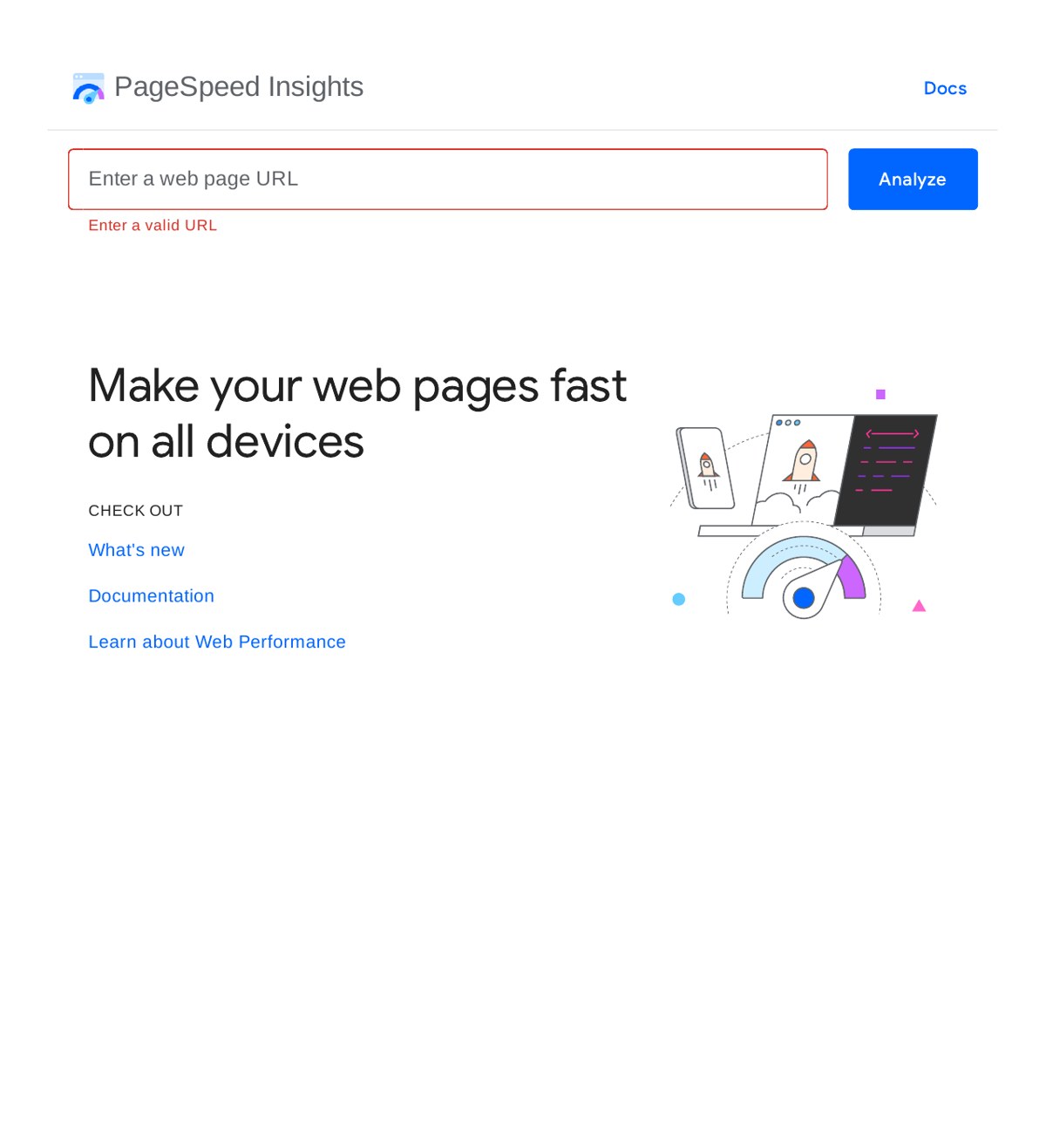
Google’s “good” thresholds are: Largest Contentful Paint at 2.5 seconds or less, Interaction to Next Paint at 200 milliseconds or less, and Cumulative Layout Shift at 0.1 or less. A page must meet all three at the 75th percentile of real visits. An average can hide slow visits, so the slowest quarter of readers can decide the result.
| Metric | What it measures | “Good” threshold |
|---|---|---|
| Largest Contentful Paint (LCP) | How fast the main content appears | 2.5 seconds or less |
| Interaction to Next Paint (INP) | How fast the page reacts to clicks and taps | 200 milliseconds or less |
| Cumulative Layout Shift (CLS) | How much the layout jumps while loading | 0.1 or less |
Source: Google’s Core Web Vitals thresholds, as summarised by Siteimprove.
Speed also shapes whether readers stay. A widely cited Google and SOASTA study found that as mobile page load time rose from 1 second to 5 seconds, the probability of a visitor bouncing rose by 90%. Common WordPress fixes include compressing images, removing unused plugins, using caching, and avoiding a theme loaded with heavy scripts.
How many sites actually pass? The HTTP Archive Web Almanac, using Chrome user data from July 2025, found that 48% of mobile origins and 56% of desktop origins passed all three Core Web Vitals. Mobile trails desktop, so test mobile first. If your blog already passes, spend your time on indexing and crawl errors instead of chasing a perfect lab score.
Step 3: Check your sitemap and robots.txt
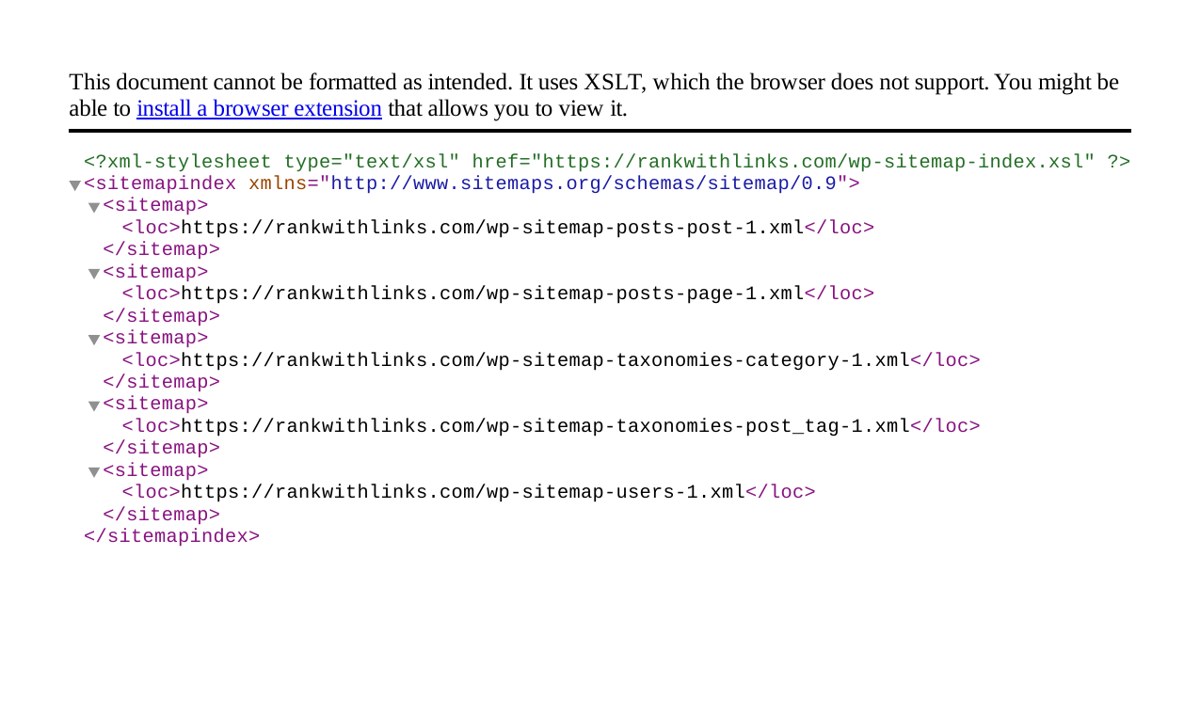
A WordPress blog normally creates a sitemap at /wp-sitemap.xml. Open it and check that it lists your posts and pages, not private or staging pages. Then in Search Console, go to Sitemaps and confirm it was read without errors.
Next, open /robots.txt. This small file tells crawlers which parts of your site they may visit. A common fault is a rule that blocks the whole site, or blocks the uploads folder so images cannot be read. Keep robots.txt short. Block only what you have a reason to block, and never use it to hide a page you also marked noindex, because a blocked page cannot be read to see the noindex instruction.
Also check for duplicate versions of your site. Your blog should settle on one version: www or non-www, and http or https. Set your preferred address in WordPress under Settings, then General, and make sure the other version redirects to it.
Step 4: Run a full crawl and list every error
A crawl shows your blog as a search engine sees it: every URL, its status code, its title, and its links. A free desktop crawler is enough for a small blog. Enter your home page address, let it crawl, then sort by status code and issue.
Fix in this order. First, server errors (5xx) and broken links (404) on important pages. Second, redirect chains, where one redirect points to another instead of going straight to the final page. Third, pages with missing, duplicated or very long titles and meta descriptions. Fourth, images without alt text. Fifth, thin tag and category pages that add little value; set those to noindex in your SEO plugin rather than deleting posts to fix them.
Also check internal links. Every important post should be reachable within a few clicks, with at least one descriptive link from a related post. Orphan pages, with no internal links pointing to them, are easy for crawlers to miss.
Step 5: Fix, re-test, and keep a simple record
Make one round of fixes, then re-test the pages you changed. Re-run PageSpeed Insights where you compressed images or removed a heavy plugin, and re-check URL Inspection where you removed a noindex tag or fixed a 404. A fix that is not re-tested is only a guess.
Keep a one-page record: the date, the tool, the problem, the fix, and the result. Repeat the full audit every three months, and run a short check after any theme change, plugin change or hosting move, because those are the moments when technical problems are most often introduced.
If you would rather hand this work to a specialist, our technical SEO audit services cover the same checks in depth, with a clear list of fixes in priority order.
Frequently asked questions
How long does a technical SEO audit for a WordPress blog take?
For a small blog with under 100 posts, a careful audit takes a few hours. Most of the time goes to reading reports, checking example URLs, and fixing problems, not running the tools. A larger blog can take a full day. Plan for two passes: one to find problems, and a second to check your fixes.
Do I need paid tools to audit a WordPress blog?
No. Google Search Console and PageSpeed Insights are free and cover indexing, speed and Core Web Vitals. WordPress gives you a free sitemap, and free crawl tools cover small blogs well. Paid tools help on large sites, but for a small blog they are a convenience, not a requirement.
What is the most common technical problem on WordPress blogs?
Slow pages and accidental blocks are the two most common problems. Slow pages usually come from large images, too many plugins, or a heavy theme. Accidental blocks come from the “discourage search engines” setting, a noindex tag left on a post, or a robots.txt rule that blocks too much.
Should I delete tag and category pages that show errors?
Usually not. Tag and category pages are a normal part of WordPress, and deleting them can create broken links. If a tag page adds little value, set it to noindex in your SEO plugin, but keep it live for readers. Delete a page only when it is truly useless and nothing links to it.
How often should I repeat a technical SEO audit?
Repeat a full audit every three months, and run a short check after any big change, such as a new theme or hosting move. Check Search Console monthly too, so a small problem like a broken sitemap does not sit unnoticed for months.

Abdullah Zulfiqar is Co-founder and Client Success Manager at RankWithLinks, an SEO agency helping businesses grow online. He specializes in client relations and SEO strategy, driving measurable results and maximizing ROI through effective link-building and digital marketing solutions.