If you want to know who links to your website, Google Search Console is the best free place to start. It shows you the links Google itself has found to your site, in one report, without a paid tool. This guide walks you through how to track backlinks in Google Search Console for beginners, step by step, so you can read the report with confidence and act on what it shows.
You can only see backlinks for a website you own and have verified in Search Console. You cannot look up a competitor’s links this way. That limit is also a strength: the data comes straight from Google, not from a third-party estimate.
What the Links report actually shows
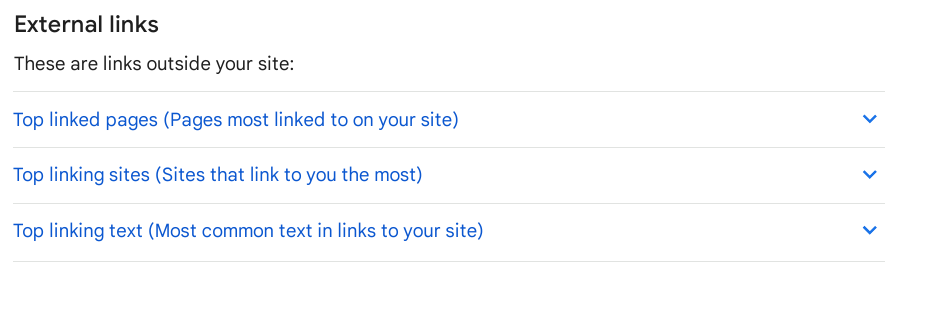
Google Search Console groups its backlink data in the Links report. Under External links you will find three tables:
- Top linked pages — the pages on your site with the most links from other sites.
- Top linking sites — the domains that link to your site most often.
- Internal links — links inside your own site, shown separately on the right.
A third external table, Top linking text, shows the anchor text other sites use when they link to you. Anchor text is the clickable words in a link, such as a brand name or a service name.
Before you read any number, learn how Google counts. Google’s own help page for the Links report states that the report is a sample, not a complete list of every link to your site. Some links are left out, for example links from pages that are not indexed. Pages are grouped by canonical URL, and duplicate links from the same source page to the same target page are combined. Sites are shown by root domain, so www.example.com and example.com appear as one entry.
| What you see in the Links report | What it really means |
|---|---|
| Top linked pages | Your pages with the most links from other sites |
| Top linking sites | Root domains linking to you, ranked by link count |
| Top linking text | The most common anchor text used in links to you |
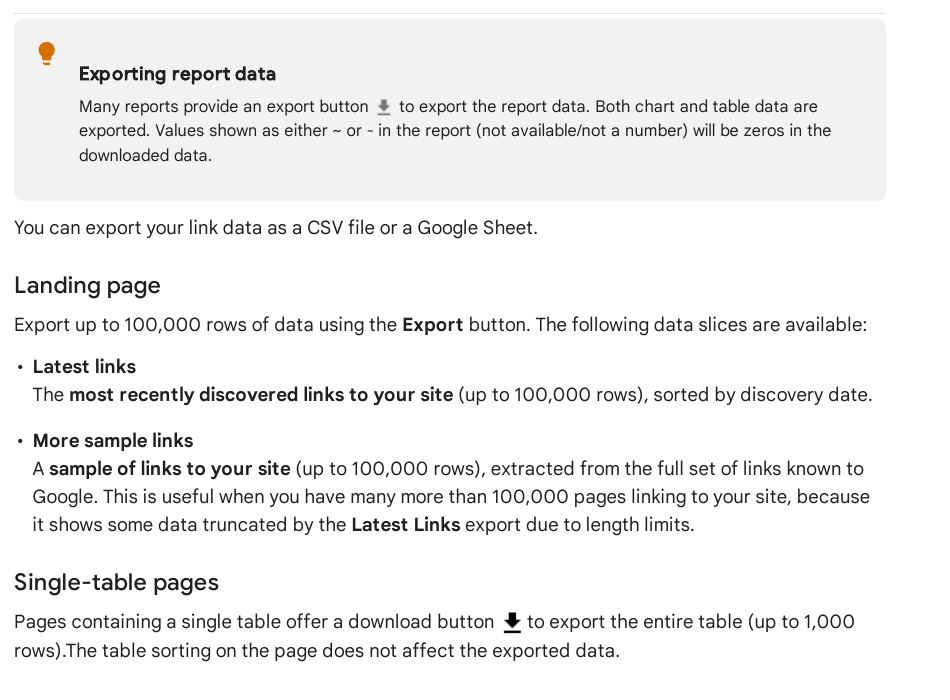
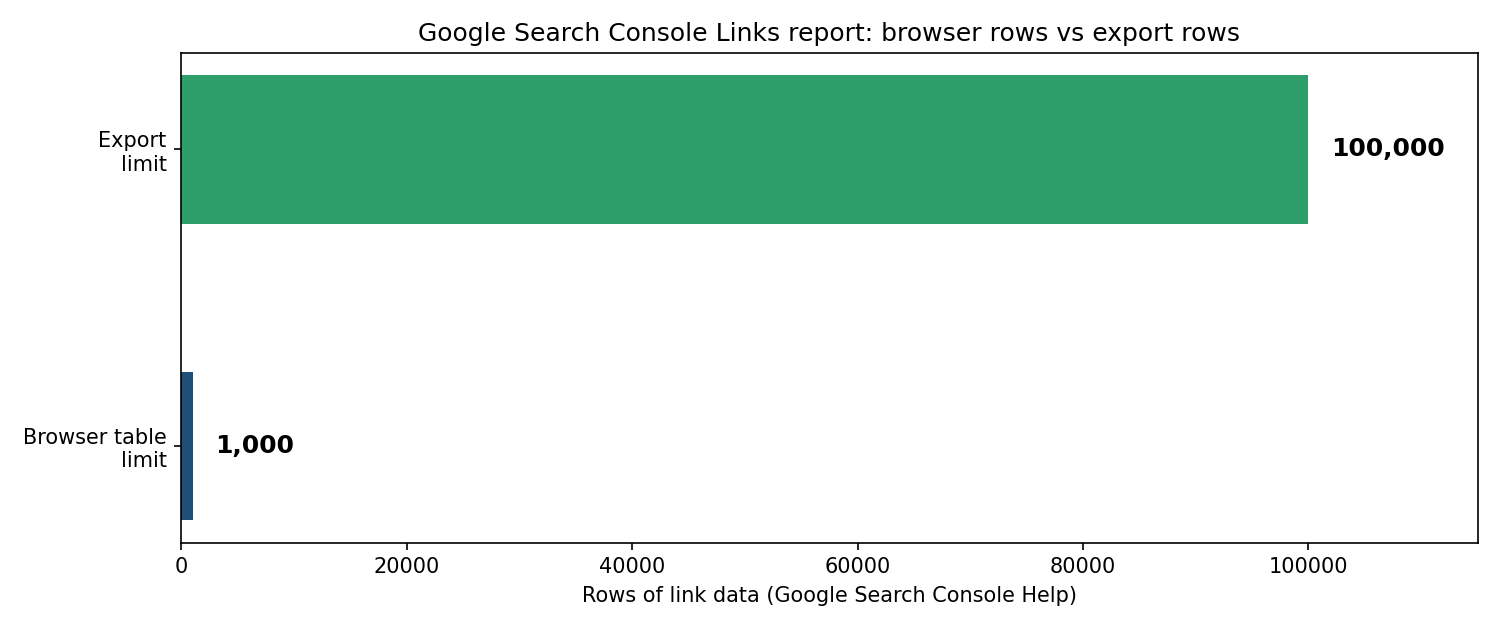
| Table limit | Tables in the browser are limited to 1,000 rows |
| Export limit | You can export up to 100,000 rows of link data |
Those two limits come from Google’s Links report help page. The 1,000-row limit applies to tables shown in the browser, while exports can reach 100,000 rows. That is why exporting matters if your site has many links.
Step 1: Open Search Console and pick the right property
Go to Google Search Console and sign in with the Google account that has access to your site. At the top left, use the property selector to choose the correct website. If you run more than one site, check the domain carefully before you read any numbers. Data for one property never mixes with data for another.
If your site is not listed at all, it is not verified yet. Add the property and complete verification first, using one of the methods Google offers, such as a DNS record or an HTML file. Until verification is complete, the Links report will be empty.
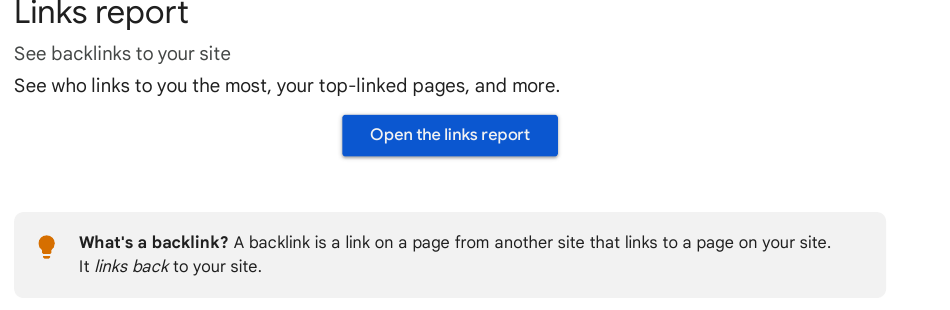
Step 2: Open the Links report
In the left-hand menu, scroll down and click Links. The report opens with the external link tables at the top and the internal links panel beside them. Take a moment to look at the whole page before you click into any single table. The overview tells you, at a glance, which pages attract links, which sites link most, and which words they use.
Step 3: Check your top linked pages
Click MORE under Top linked pages to see the full list. This table answers a simple question: which of your pages do other sites actually link to?
Compare the list with your expectations. Your homepage, your main service pages, and your best guides should usually sit near the top. If a page you barely promote ranks high, find out why — it may answer a question people keep sharing. If an important service page has almost no links, that page may need better content, better internal links, or fresh outreach.
Click any page in the list to see the top sites linking to that page. This drill-down is the fastest way to check a single page, for example after you publish a new guide or earn press coverage.
Step 4: Review your top linking sites
Next, click MORE under Top linking sites. This table shows root domains, ranked by how many of their pages link to you. Click a domain to see which of your pages it links to.
Work through the list in three groups:
- Sites you recognise and trust — customers, partners, suppliers, local organisations, and genuine press. Note which pages they link to, so you can thank them or build on the relationship.
- Sites you do not recognise but that look real — small blogs, directories, and forums. Open a few linking pages and check that the link is genuine and relevant.
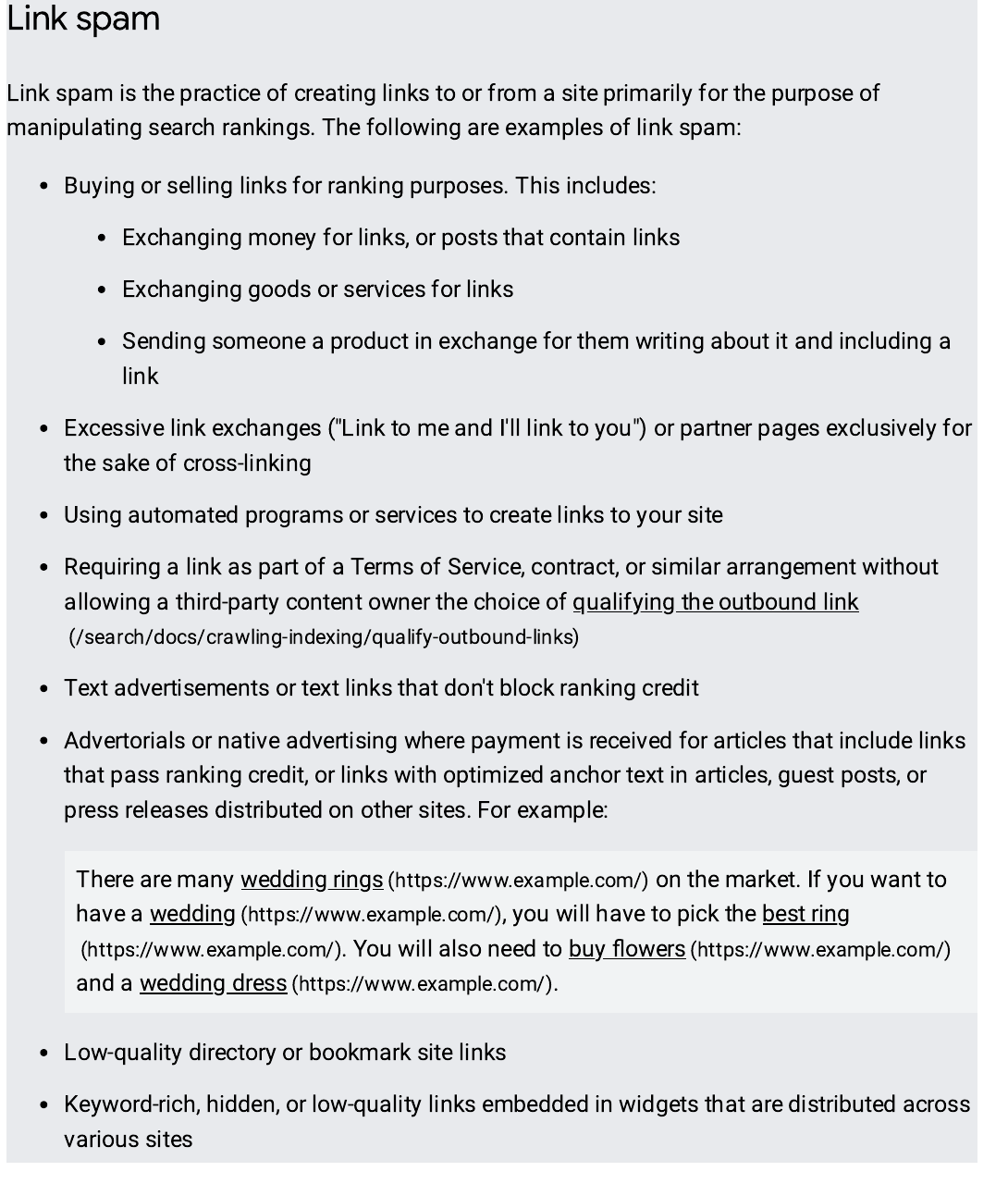
- Sites that look spammy — copied content, unrelated topics, or pages stuffed with links. Note them for Step 6, but do not panic over one odd domain. Google’s help page notes that Google typically ignores known spammy links on its own.
Remember that the report does not say whether a link is marked as nofollow. A nofollow link tells search engines not to pass ranking credit, but Search Console does not label it. If that detail matters for one important link, open the linking page and check its source code.
Step 5: Read your top linking text
Click MORE under Top linking text. This table shows the words other sites use when they link to you, grouped by exact match and sorted by count. Links with no text, such as image links, appear as “(empty)”.
Healthy anchor text usually looks natural: a mix of your brand name, your site name, and plain phrases such as “click here” or a page title. Watch for two warning signs. First, a sudden run of exact-match commercial phrases, repeated word for word across many sites, can look forced. Second, anchor text in a language or on a topic that has nothing to do with your site can point to spam links.
If the anchor text misdescribes your site, the fix is usually on your own pages: make what you do clearer, so honest linkers describe you correctly.
Step 6: Export your data and keep a monthly record
At the top of the report, use Export External Links to download your data as a CSV file or a Google Sheet. Save each export with the date in the file name, for example “links-2026-11-02.csv”. A monthly export gives you a baseline, so next month you can spot new linking sites, lost links, and rising pages instead of guessing.
In your spreadsheet, add a simple column for your own notes: trusted, unknown, or spammy. That one column turns a raw export into a working record you can revisit each month. Do not delete rows from the export itself — keep the original file intact and work on a copy.
Step 7: Check new links and deal with spam carefully
New backlinks do not appear instantly. Google must first crawl the linking page, so a link earned this week may take days or weeks to show up, and some sampled links may never appear. If a link you expected is missing, first check that the linking page is live and the link is still on it, and confirm you are looking at the correct property.
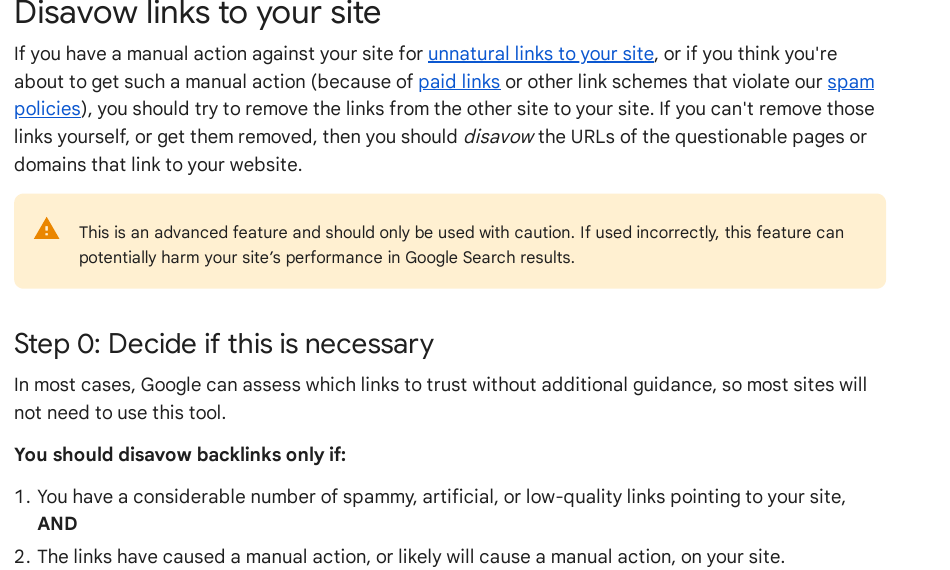
For spammy links, start with removal: contact the site owner and ask them to remove the link. Google’s guidance is clear that you should only use the disavow tool for known spammy sites, after removal has failed, because disavowing good links can hurt you. The disavow tool is separate from the Links report, and it should be a last resort, not a monthly routine.
What Search Console cannot tell you
Search Console is a strong starting point, but it has clear limits. It shows a sample, not every link. It does not label nofollow links. It does not show links to sites you do not own. It also does not score link quality — a link from a trusted local newspaper and a link from a copied spam page can sit in the same table, and telling them apart is your job.
That is where a careful routine helps. Check the report monthly, export the data, sort linking sites into trusted, unknown, and spammy, and follow up on the ones that matter. Over time, you will see which pages earn links on their own and which need more work.
If you want help turning that routine into steady, earned links, our manual link building services use manual outreach only, with no private blog networks. Every link is earned from a real site, and every placement is reported honestly.
Frequently asked questions
Can I see backlinks for any website in Google Search Console?
No. You can only see backlinks for properties you have verified. Search Console protects other site owners’ data, so a competitor’s links are not visible to you. To check your own links, verify your property first, then open Links in the left-hand menu. For a competitor, use a paid backlink tool instead, and treat its numbers as estimates rather than Google’s own record.
Why does Search Console show fewer backlinks than a paid tool?
The two tools count differently. Search Console shows a sample of the links Google has found, grouped by canonical URL, with tables limited to 1,000 rows in the browser. Paid tools crawl the web with their own systems and may find links Google has not indexed, or count duplicates differently. Neither number is wrong; they measure different things.
How often should I check my backlinks in Search Console?
Once a month is enough for most small sites. Export the data each time and save it with the date, so you can compare months. Check more often only after a big launch, a press mention, or a sudden traffic change, when new links are more likely. Keep the same simple routine each month so trends stay easy to compare.
How long does a new backlink take to appear?
There is no fixed delay. Google must crawl and index the linking page first, which can take days or weeks, and sampled links may never appear. If a link is missing after a month, check that the linking page is still live and the link is still in place. Do not chase a missing link by resubmitting it repeatedly; focus on earning links that stay live.
Does Search Console show nofollow links?
The Links report does not say whether a link is marked as nofollow. It lists the link either way. To check one important link, open the linking page in your browser and view its source code, where a nofollow attribute will appear in the link tag if one is present.
Should I buy backlinks to grow my link count faster?
No. Buying links breaks Google’s spam policies and can lead to a manual action against your site, which can cut your rankings sharply. Earn links instead, with useful content and honest outreach to real sites. If a link offer promises fast rankings for a fee, treat it as a warning sign, not a shortcut.
Sources: Google Search Console Help, Links report (https://support.google.com/webmasters/answer/9049606?hl=en); Google Search Central, spam policies (https://developers.google.com/search/docs/essentials/spam-policies); Google Search Console Help, disavow links (https://support.google.com/webmasters/answer/2648487?hl=en).

Abdullah Zulfiqar is Co-founder and Client Success Manager at RankWithLinks, an SEO agency helping businesses grow online. He specializes in client relations and SEO strategy, driving measurable results and maximizing ROI through effective link-building and digital marketing solutions.