
Intro
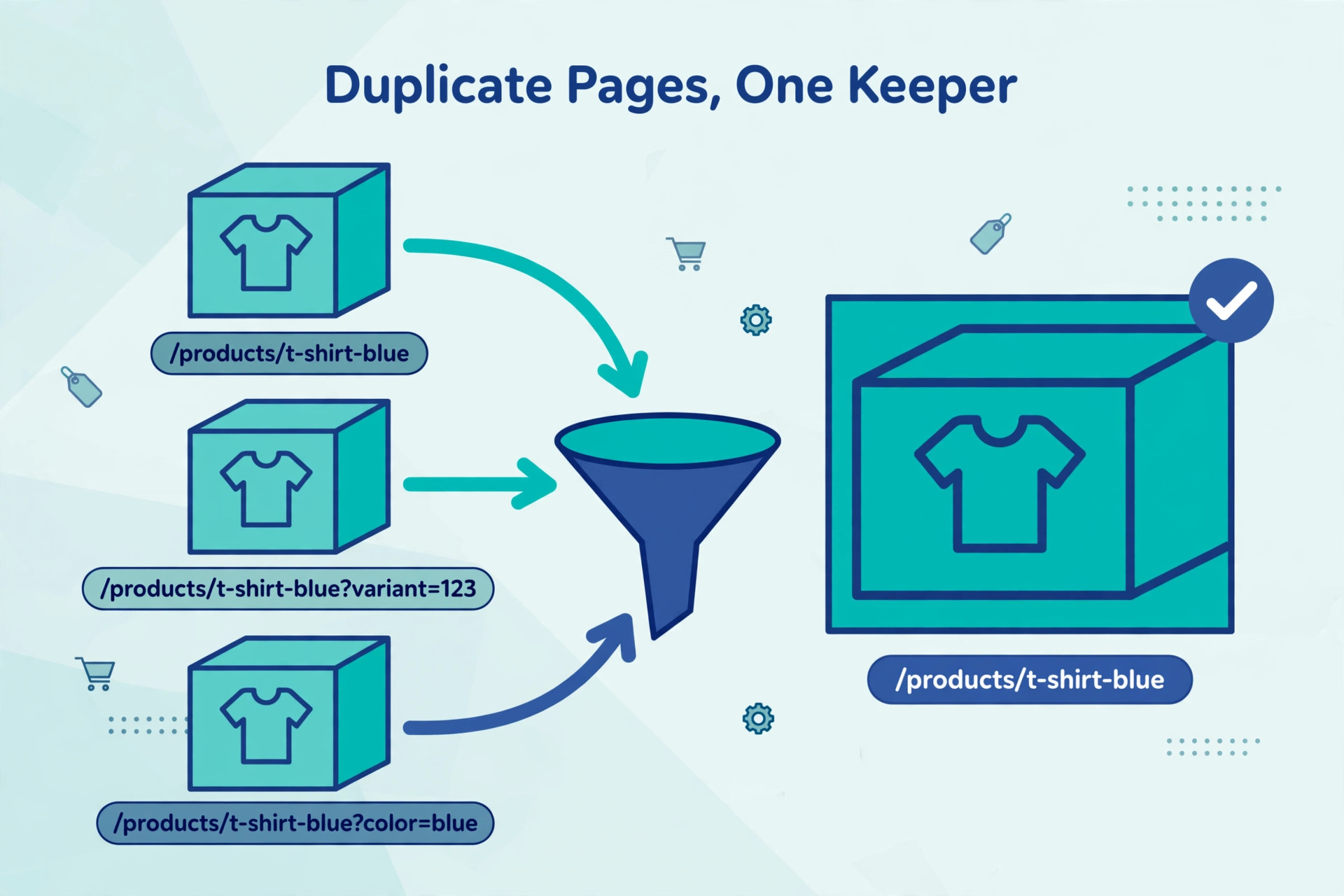
This step-by-step guide shows how to fix duplicate product pages for SEO on Shopify. If you run a Shopify store, you can end up with several pages showing the same product without ever meaning to. The same shirt can appear at its own product address, inside two collections, and again with a variant or filter added to the address. Search engines then have to choose which version to show, and they may not choose the one you want. Here you will find the duplicates, pick one keeper page, point the other versions at it, redirect the pages that should no longer exist, and check what Google actually chose.
What counts as a duplicate product page on Shopify?
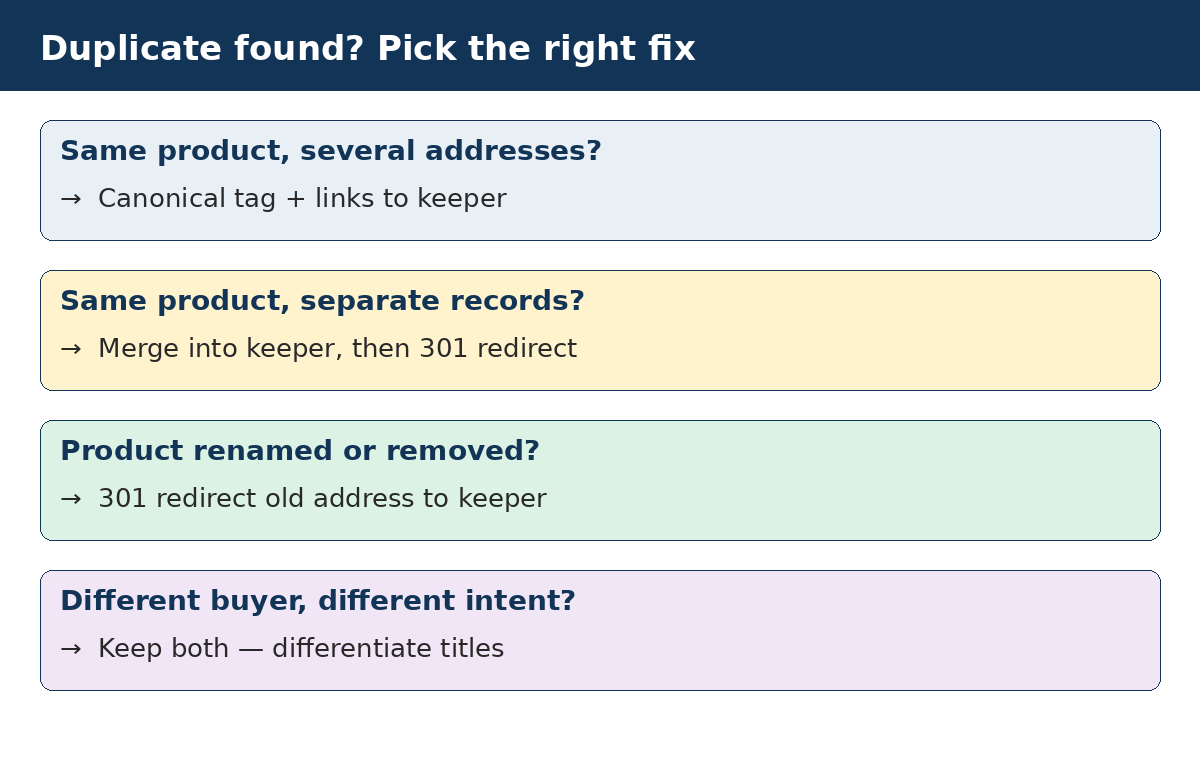
A duplicate is not always an exact copy. On Shopify, duplicates usually fall into two groups. The first group is one product reached through several addresses. The second group is two or more separate product records in your admin that sell the same item, often because a product was copied, imported twice, or created again by mistake.
| Duplicate type | Example | Usual fix |
|---|---|---|
| Collection path | /collections/sale/products/red-shirt and /products/red-shirt | Canonical tag, plus links to the plain product address |
| Variant address | /products/red-shirt?variant=12345 | Canonical tag to the base product address |
| Filter or sort address | /collections/shirts?sort_by=price-ascending | Canonical tag to the base collection address |
| Copied product record | Red Shirt and Red Shirt with handle red-shirt-1 | Merge into one keeper, then redirect the spare address |
| Renamed or removed product | Old handle still indexed after a rename | 301 redirect from the old address to the keeper |
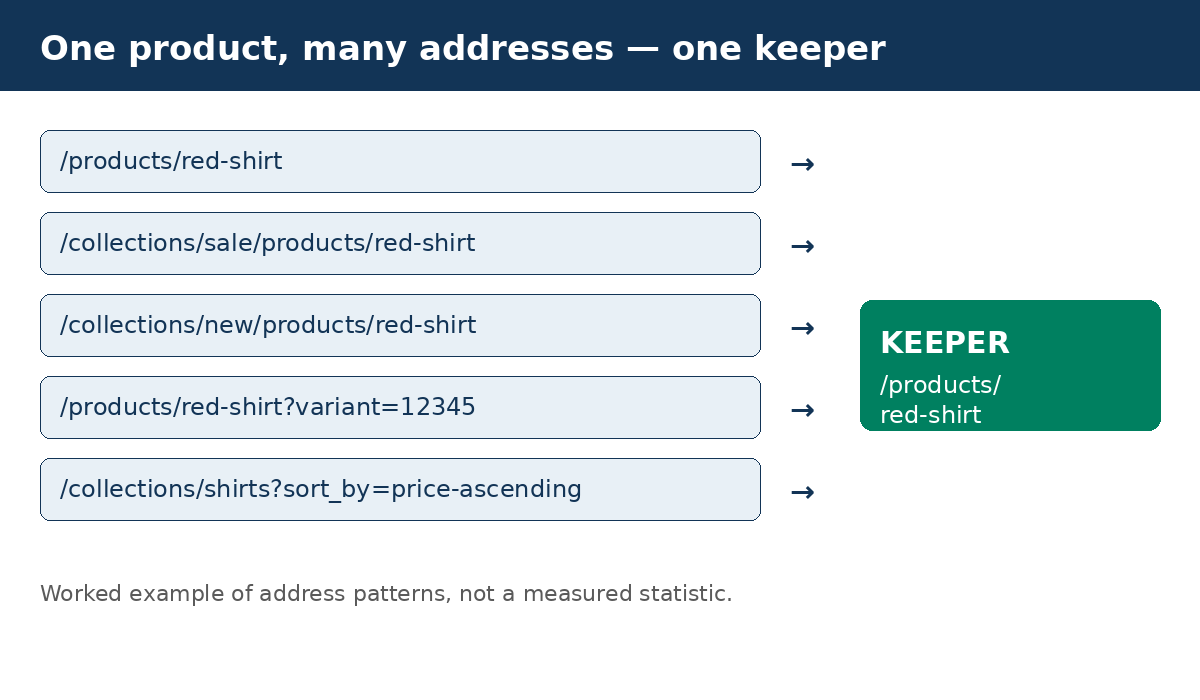
Shopify already handles much of the first group for you. Its themes add canonical tags automatically, pointing collection-path and variant addresses back to the main product page. That is why the job is usually about checking that the defaults still work, fixing the cases where they do not, and cleaning up the separate product records that a canonical tag cannot fix.
Step 1: Find every duplicate before you change anything
Do not start deleting or redirecting pages on a hunch. Work from a list.
- In Shopify admin, go to Products and sort by title, A to Z. Near-identical titles sitting next to each other are your first suspects.
- Export your product list and sort the spreadsheet by handle. Handles ending in -1 or -2 are strong leads: Shopify adds a number when a copied or re-imported product would otherwise share a handle.
- Search your admin for a suspect SKU. Shopify warns when a SKU is already in use, but that warning can be ignored, and products imported without SKUs never trigger it, so a manual check still matters.
- In Google Search Console, open Indexing, then Pages, and look at the “Why pages aren’t indexed” reasons. “Alternate page with proper canonical tag” usually means Google found the duplicate and correctly picked your main page, so no action is needed. “Duplicate without user-selected canonical” and “Duplicate, Google chose different canonical than user” are the ones to investigate.
Write each suspect down with its address, its handle, and the page you think should be the keeper. You will need that list for the redirect step later.
Step 2: Decide the keeper for each duplicate
For every group of duplicates, choose one keeper page and be strict about it.
- Keep the product that has the orders, the reviews, and the links pointing at it. Moving reviews between products depends on your review app, so check how it handles reassignment before you remove anything.
- If two product records sell the same item in different sizes or colours, the keeper should usually be one product with variants, not two separate products. Shopify’s own guidance is to add an option such as colour or size as a variant instead of duplicating the product.
- If the two pages genuinely serve different buyers, with different names, prices, and search intent, they may not be duplicates at all. Do not force them together. Differentiate the titles, descriptions, and photos instead.
- If a product is only a test, a draft, or a half-finished copy, it is not a keeper. Archive or remove it once you have copied anything useful from it.
Copy anything worth keeping onto the keeper first: the best photos, the full description, tags, metafields, and collection memberships. Only then deal with the spare page.
Step 3: Point internal links at the keeper address
A canonical tag is only a hint, and Google weighs it alongside your other signals. If every link on your site points at the collection-path version of a product while the canonical tag points at the plain product address, you are sending mixed signals.
In your theme, product links inside collections often use the collection version of the address. Changing those links to the plain product address, using the product’s own URL rather than the collection-scoped URL, removes the conflict at source. Check your navigation, featured-collection sections, and any “you may also like” blocks the same way. Every internal link to a product should use the keeper address.
This step costs nothing and it protects the canonical tag you already have. Google’s own canonical guidance lists internal linking as one of the signals it uses when choosing the preferred address, alongside redirects, sitemaps, and the page content itself.
Step 4: Check the canonical tag on the live page
Open a product page in your browser, view the page source, and search for “canonical”. You should find one link tag pointing at the preferred address, for example: <link rel=”canonical” href=”https://yourstore.com/products/red-shirt” />
Then check the versions that should consolidate:
- Open the product through a collection, at /collections/sale/products/red-shirt. Its canonical should still point at /products/red-shirt.
- Switch to another size or colour, which adds ?variant= to the address. The canonical should still point at the plain product address.
- Open a filtered or sorted collection page. Its canonical should point at the base collection address, without the filter or sort parameters.
If a canonical tag is missing or points at the wrong page, check your theme.liquid file for the canonical tag, and check whether a theme edit or an app has changed it. Fix the template rather than patching pages one by one, or the problem will come back with the next product you add.
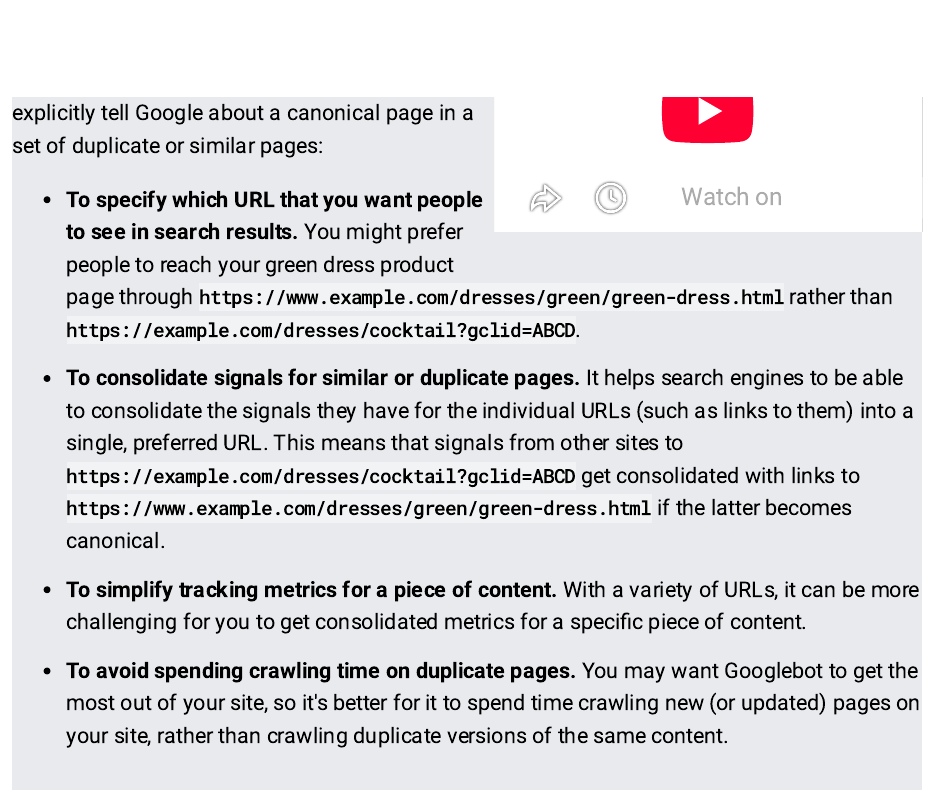
Google explains why this matters in its guide to consolidating duplicate URLs. It gives four reasons to state a canonical preference: to choose which address people see in search results, to consolidate ranking signals such as links into one address, to simplify your tracking, and to save crawl time so Googlebot spends its visits on new or updated pages rather than on copies. That is the whole case for doing this work: one strong page instead of several weak copies splitting the same signals.
Step 5: Redirect the pages that should no longer exist
A canonical tag tells Google which version to prefer. A redirect is stronger: it sends visitors and search engines from an old address to a new one, and it is the right tool when a product record is gone, renamed, or merged into a keeper.
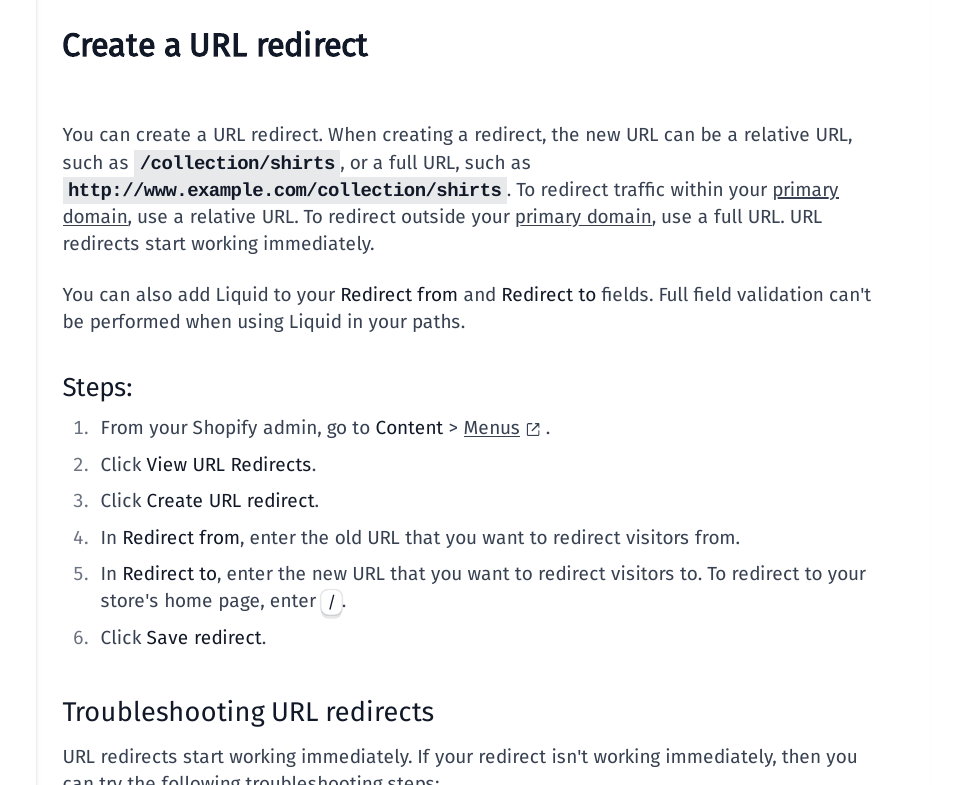
In Shopify admin, go to Content, then Menus, then View URL Redirects, and click Create URL redirect. Enter the old path in “Redirect from” and the keeper path in “Redirect to”, then save. Shopify’s help pages confirm that redirects start working immediately, and that a store can hold up to 100,000 URL redirects.
Three rules keep redirects safe:
- Redirects only work from broken addresses. If the old product page still loads, the redirect will not fire, so archive or remove the spare product first and confirm the old address shows a “Page not found” page in a private browser window.
- Redirect to the closest matching page, never to the homepage by default. A shopper who clicked a link for a red shirt does not want your homepage.
- Do not build chains. If address A already redirects to address B, redirect the next old address straight to B, not to A.
For a large clean-up, Shopify lets you import redirects from a CSV file on the same screen, which is far faster than creating them one at a time.
Step 6: Treat variants, filters, and pagination correctly
Not every similar address is a duplicate, and treating them all the same way creates new problems.
- Variants: sizes and colours of the same product should share one canonical address, the base product page, unless a variant is genuinely a different product that buyers search for separately.
- Filters and sorting: a filtered collection page that shows the same products in a different order should canonicalise to the base collection. If a filter creates a genuinely different selection that buyers search for, treat it as its own page with its own title and description, or keep it out of the index.
- Pagination: each page of a collection is a different set of products, so page 2 should canonicalise to itself, not to page 1. Pointing page 2 at page 1 can hide the deeper products from search.
- Tag pages: a single-tag collection page canonicalises to itself on Shopify by default, so decide whether that tag page deserves to rank. If it does not, do not rely on the canonical tag alone; consider whether it should be linked at all.
Step 7: Verify what Google actually chose
Fixing the tags and redirects is only half the job. Google decides the canonical address, and it can disagree with you when your signals conflict.
In Google Search Console, use URL Inspection on a duplicate address and compare two fields: “User-declared canonical”, which is what your site says, and “Google-selected canonical”, which is what Google chose. If they match, your fix worked. If Google chose a different address, open all three pages — the tested page, your declared canonical, and Google’s choice — and look for the conflicting signal: a link pointing at the wrong version, a sitemap listing the duplicate, or a canonical tag pointing at a page that is not actually similar.
After a fix, give Google time to recrawl. Recheck the Page indexing report a few weeks later and confirm the duplicate addresses sit under “Alternate page with proper canonical tag” or “Page with redirect”, while the keeper page is indexed.
A crawler such as Screaming Frog’s SEO Spider (https://www.screamingfrog.co.uk/seo-spider/) can speed up the recheck on a larger store: crawl the site, filter for duplicate titles, duplicate descriptions, and canonical mismatches, and work through that list instead of clicking through pages by hand.
Step 8: Stop duplicates coming back
Most Shopify duplicates are created by routine work, not by one big mistake, so the prevention rules belong in the same routine:
- One product, one record. Add sizes and colours as variants instead of copying the product.
- Keep handles stable. Renaming a product does not change its handle automatically, and changing a handle without a redirect creates a new duplicate trail.
- When importing by CSV, match rows to existing products by handle, and leave the overwrite option off unless you mean to replace the existing data. Rows with a new handle create a new product, even if the title matches.
- Before a sale or a range change, list the pages that will disappear and prepare their redirects in advance, so no renamed product sits indexed at a dead address.
- Re-run the export-and-sort check from Step 1 once a month. It takes minutes on a small catalogue and catches a duplicate while it is still one page, not fifty.
If you would rather have an agency handle the clean-up, see our ecommerce link building services.
FAQ
Does duplicate content on Shopify hurt rankings with a penalty?
Duplicate content on its own is not a penalty in Google’s sense. The cost is quieter: ranking signals split across several addresses, the wrong address can appear in search results, and crawl time is spent on copies instead of on new pages. Fixing duplicates is about consolidating strength, not about escaping a punishment.
Should I delete a duplicate product or redirect it?
If the spare product has orders, reviews, or links, merge its useful content into the keeper first, then archive or remove it and redirect its address to the keeper. Deleting without a redirect leaves anyone following an old link, or an old search result, on a dead page. If the spare page never had traffic or links, removal alone may be enough, but a redirect is still the safer habit.
Why does Google still show the wrong version after I set the canonical tag?
A canonical tag is a hint, not an order. Google also weighs redirects, internal links, sitemap entries, and how similar the pages are. If your links still point at the duplicate version, or your sitemap lists it, Google may keep choosing it. Align every signal on the keeper address, then recheck with URL Inspection.
Can I just noindex every duplicate product page?
You can, but it is rarely the best first move. A noindex tag removes a page from search results without passing its signals to the keeper. For a collection-path or variant address, the canonical tag already does the job better. Reserve noindex for pages that should never rank at all, such as internal search results or purely filtered views with no search demand.
What if two products look alike but sell to different buyers?
Then they are not duplicates. Give each one its own title, description, photos, and price story, and let each rank for its own terms. Forcing unlike products into one canonical address will hide one of them from search, which is the opposite of what you want.
How long does it take for Google to reflect a duplicate fix?
It depends on how often Google recrawls your store. Small stores often see changes within days to a few weeks after recrawling, while larger catalogues take longer. Use URL Inspection to confirm Google’s chosen canonical, and treat the Page indexing report, not guesswork, as the proof that the fix landed.
Sources
- Google Search Central, “How to Specify a Canonical with rel=canonical and Other Methods”: https://developers.google.com/search/docs/crawling-indexing/consolidate-duplicate-urls
- Shopify Help Center, “Creating and managing URL redirects”: https://help.shopify.com/en/manual/online-store/menus-and-links/url-redirect
- CrawlRaven, “Shopify Canonical URLs and Duplicate Content: The Collection Path Problem”: https://crawlraven.com/blog/shopify-canonical-duplicate-content
- GoTinker, “How to Find and Remove Duplicate Products in Shopify (2026)”: https://gotinker.dev/blog/how-to-find-and-remove-duplicate-products-in-shopify-2026

Abdullah Zulfiqar is Co-founder and Client Success Manager at RankWithLinks, an SEO agency helping businesses grow online. He specializes in client relations and SEO strategy, driving measurable results and maximizing ROI through effective link-building and digital marketing solutions.